Table of Contents
Project Development
Introduction
This chapter contains our project's evolution, in particular, you can find currently the concept, designs, smart system, structure and also the materials chosen for the Healing Cocoon.
Ideation
The idea of the Healing Cocoon came to us after reflection and several brainstorming sessions. First, we tried to recall events we had experienced and heard about in the fields of health and well-being. We quickly focused on the impact of the medical environment (hospitals or waiting rooms) and agreed to work on a solution to improve experiences in medical settings.
Concept
The concept of the Healing Cocoon is to transform clinical environments into calming and immersive spaces.
By combining light, sound and scent, it helps reduce stress and improve children well-being.
The features of our Healing Cocoon:
- Calming audio and scent stimulation
- Immersive 180° visual environment
- Accessibilty for children in wheelchairs
Design
Structure
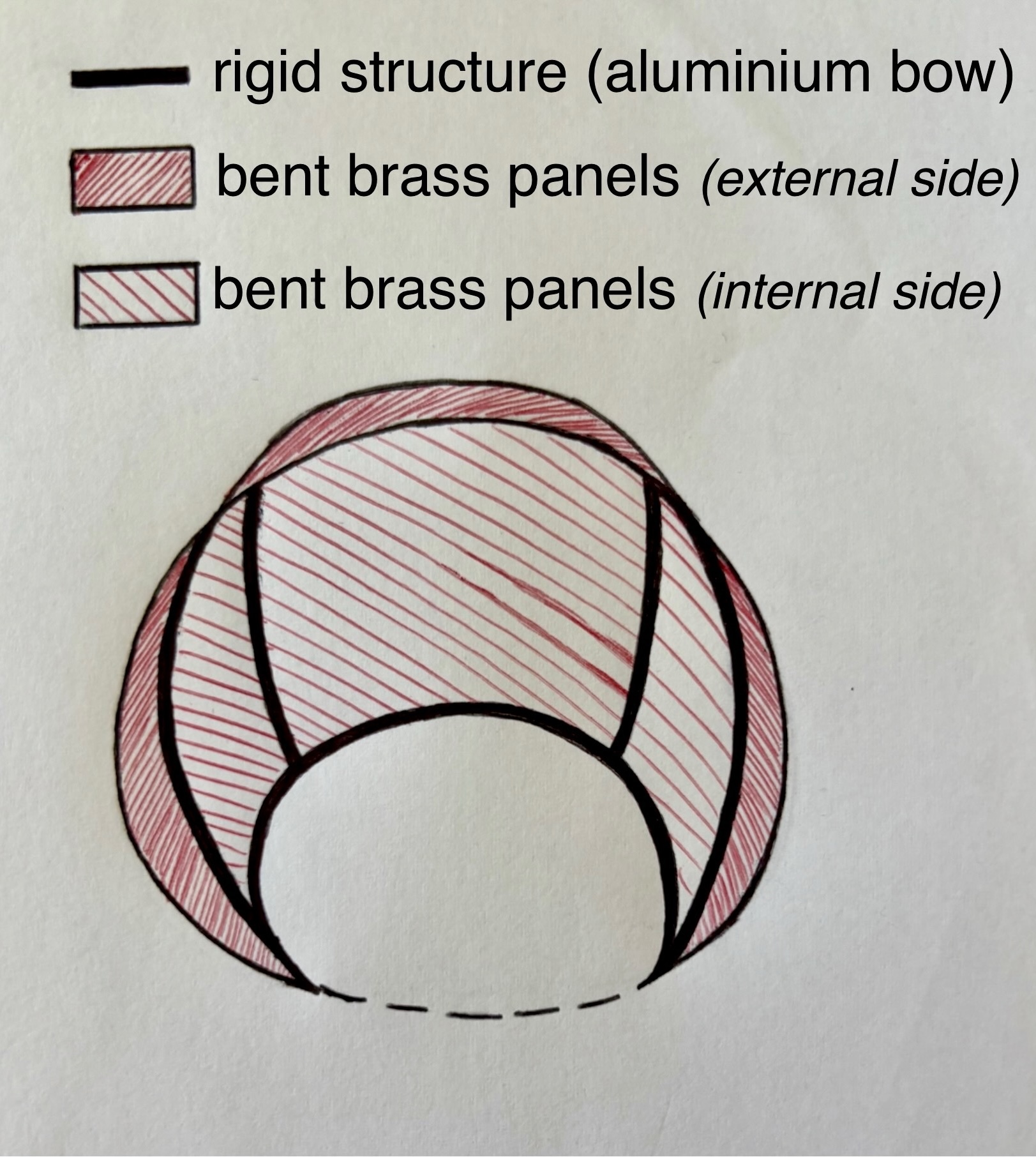
- Initial structural drafts and materials details – Figure 1 shows the rigid metal structure made of aluminium arches (this material was chosen because it is less expensive than brass and easy to work with.). In red, we drew the brass panels that will be attached to the metal structure (the exterior surface of the panels will be brushed to make the outside of the cocoon less metallic and more welcoming).

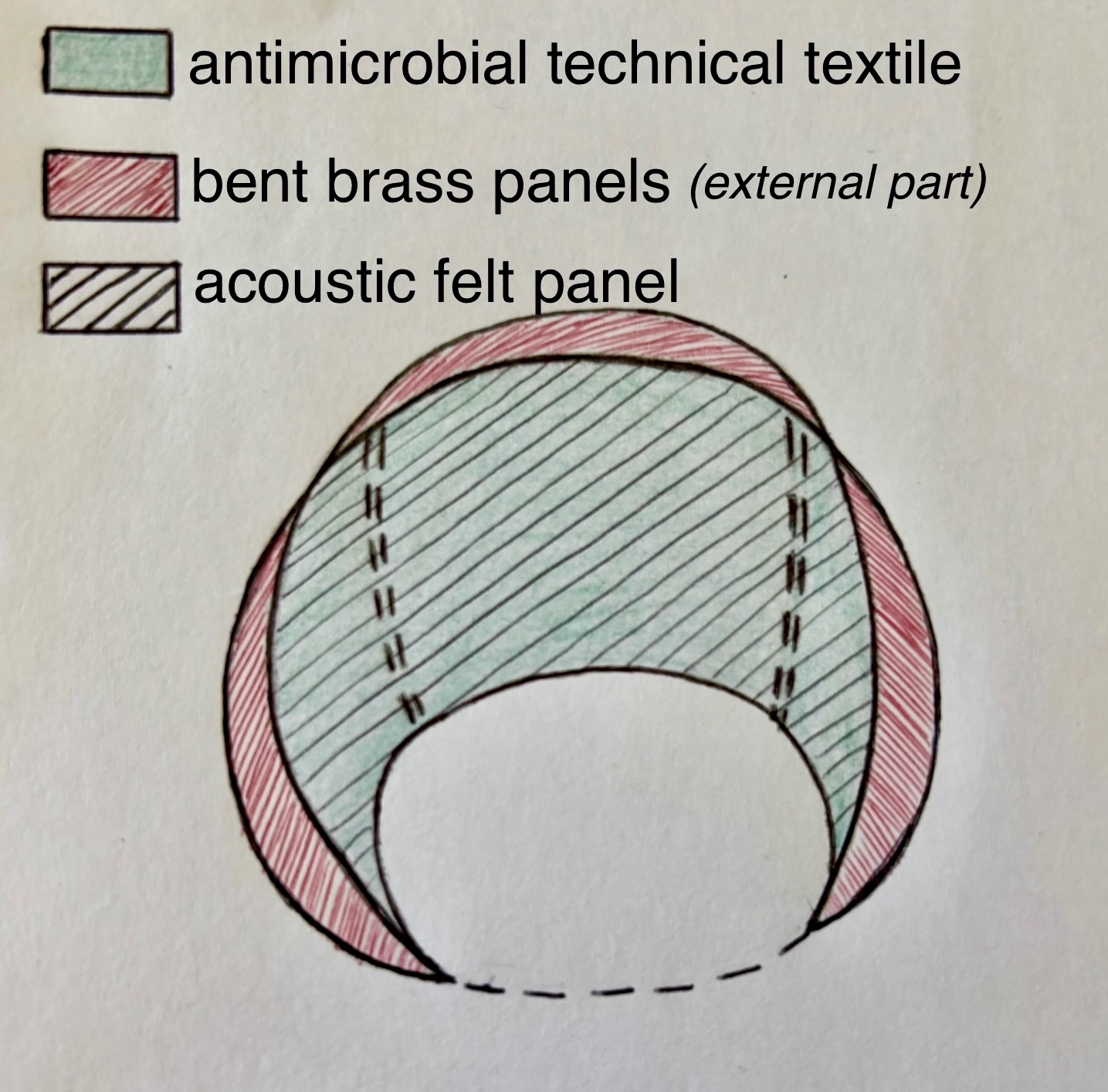
Figure 1: Metallic structure and external part of the cocoon with corresponding materials Figure 2 shows the internal part and the materials: first, the acoustic panels are fixed using the aluminum structure. Then, the antimicrobial fabric is attached to these panels (using adhesive or the self-adhesive properties of the acoustic panels).

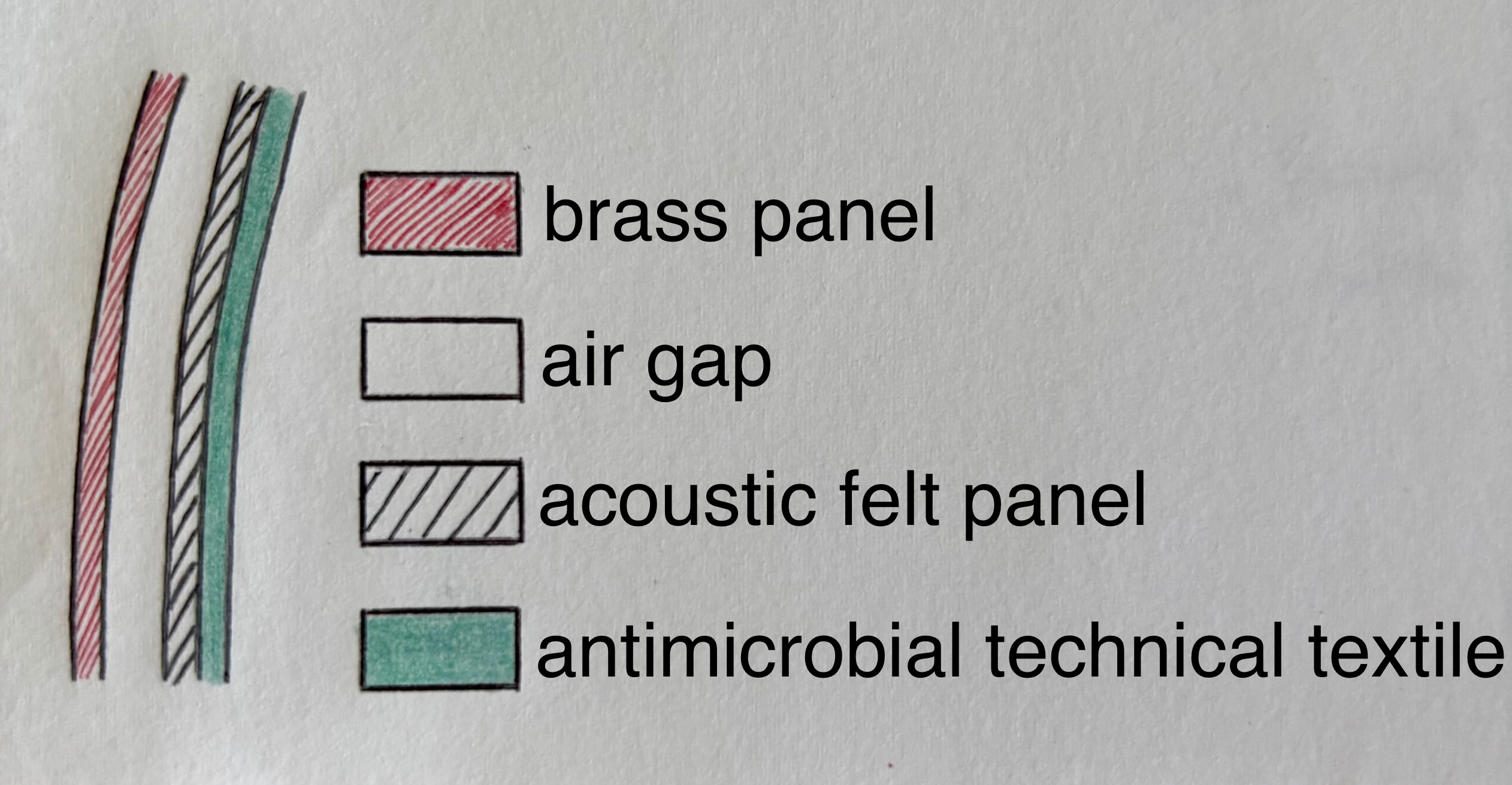
Figure 2: Internal part of the cocoon with corresponding materials - Material selection – Figure 3 shows the different layers of our cocoon's structure. The air gap is due to the presence of the arched metallic structure in certain area of the cocoon, as shown in Figure 1. We have compiled a list of Portuguese suppliers who could meet our needs: (i) F.Marques da Silva S.A for the brass panels [1] and the aluminum structure [2]; and (ii) artnovion for the acoustic panels [3]. We are still thinking about the antimicrobial textil we want to use, but Monteiro Fabrics with its MEDIFLEX collection offers interesting possibilities [4]
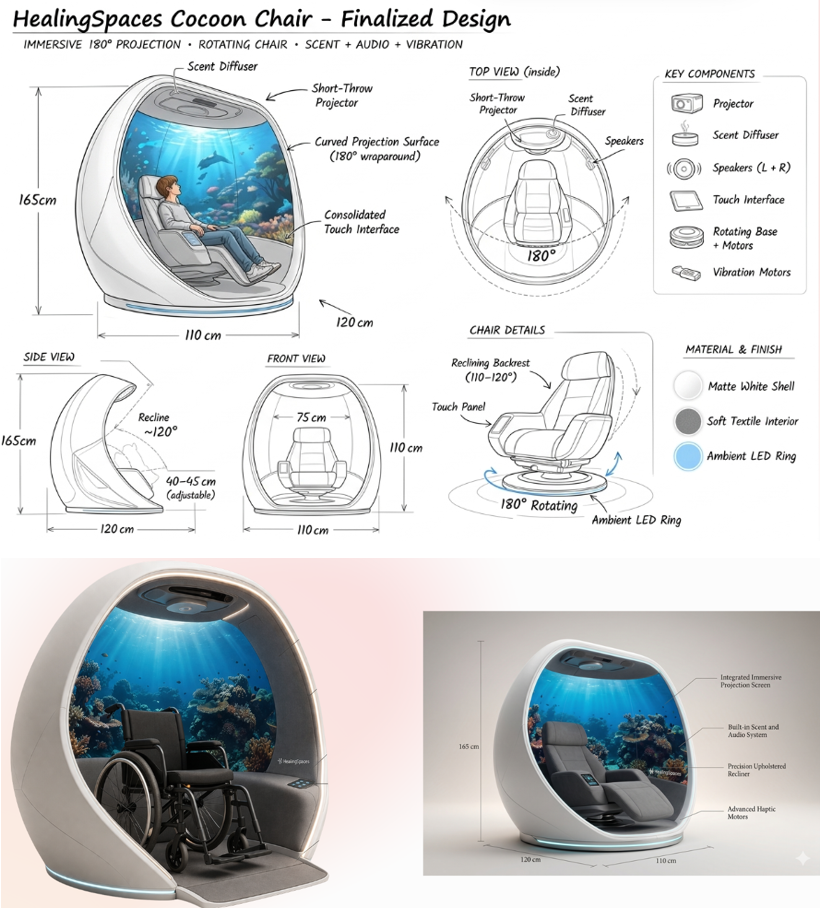
- Detailed drawings – Figure 4 shows the evolution of the design of our idea. First of all, we decided that the cocoon will not be fully closed in order to avoid feelings of claustrophobia, but also so that parents could maintain contact with their child if needed. To allow for true sensory immersion, we wanted to incorporate a chair that could vary its positions (sitting, lying down) and rotate to face the visuals. We also wanted the inside of the cocoon to be accessible for children with reduced mobility, such as those in wheelchairs. We are now thinking about adding small wheels to the chair so it can be easily moved when a child in a wheelchair wants to get into the cocoon. These small wheels can be locked once the chair is inside the cocoon.
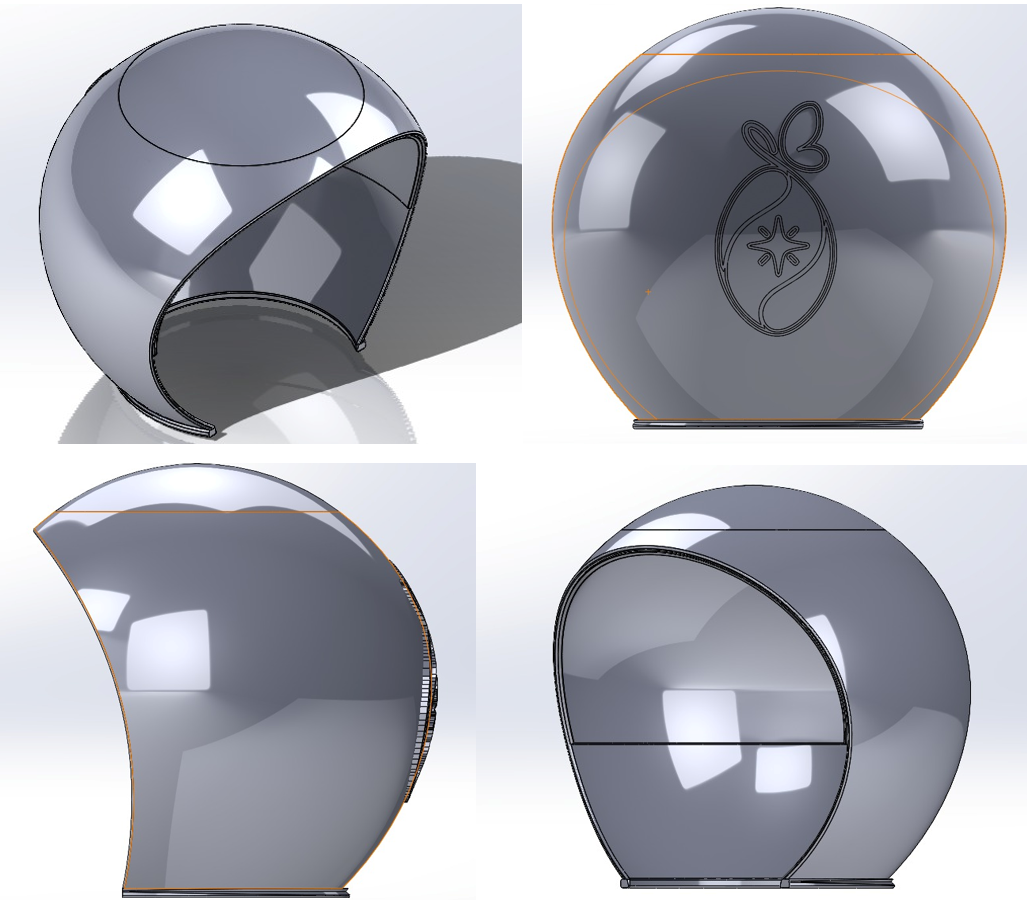
- 3D Model on SolidWorks – Figure 5 shows the 3D Model of the Healing Cocoon made with SolidWorks. The logo will be visible on the back of the cocoon. Furthermore, we removed the cocoon's platform because the multisensory experience will be sufficiently stimulating with sight, sound, and smell. This new design makes moving the chair easier and improves wheelchair access.
Structure Tests
Introduction
To evaluate the structural performance of the cocoon design, a static simulation was performed in SOLIDWORKS, Figure 6. The cocoon was modeled using copper as the selected material. The analysis focused on the stress distribution and displacement behavior under the applied loads. The goal was to determine whether the structure is strong and rigid enough to withstand external forces without failure or excessive deformation.

Conclusion
The simulation results show that the copper cocoon structure performs safely under the applied load conditions. The maximum stress remains far below the material yield strength, while the displacement is extremely small. This indicates that the design is highly rigid and experiences minimal deformation, confirming that the structure is mechanically stable and suitable for its intended use.
Smart System
Hardware
Black Box Diagram
This diagram represents a high-level overview of an interactive, multi-sensory system, likely designed for patient therapy, relaxation, or an immersive room experience.
Here is the breakdown of how the different parts interact:
Inputs
Cloud: This section handles remote data. It contains an App and Content that communicate with each other. The cloud sends data, media, or instructions down to the main control unit.
User/Patient: This represents the human interaction. The user has a Device to draw (tablet, mobile) that connects to a local App. Whatever the user inputs or draws is sent directly to the central control system.
Core Processing System
Controller: The central microcontroller processes all incoming commands and makes decisions.
Sensors: It continuously reads environmental data using various sensors (Light, Motion, Air, CO2, Moisture). The controller and the sensors talk to each other to adjust the room's environment based on real-time conditions.
Outputs / Actuators Projector: Displays visual content (perhaps the drawings from the user's tablet or media from the cloud).
Scent sprayer: Releases aromas into the room (using your ultrasonic atomizer).
Speaker: Plays audio, music, or sound effects.
Power Supply
This block shows how electrical energy is distributed. It provides power directly to the central Controller, and it also has dedicated power lines going straight to the output devices (Projector, Scent sprayer, Speaker). This is a very important detail, as high-draw components like projectors and speakers need their own direct power lines rather than drawing current through the main controller.
Figure 7 presents the black box diagram.

Hardware component selection
| Name | Type | Supplier | Notes | Price (€) | Quantity | Total (€) |
|---|---|---|---|---|---|---|
| ESP32 DevKit V1, ESP32-WROOM-32 | Processor | Farnell | Dual core 240 MHz, integrated Wi-Fi + Bluetooth. Replaces separate Wi-Fi module. | 8.75 | 1 | 8.75 |
| Light Sensor, BH1750 (GY-302) | Sensor | Botnroll | I2C digital lux sensor, 0–65535 lux, 3.3 V–5 V. Better than LDR — no conversion needed. | 1.87 | 1 | 1.87 |
| CO2 Sensor, MQ-135 | Sensor | Aquario | Detects CO2, NH3, alcohol, benzene, smoke. 10–1000 ppm. Analog + digital output. Compatible 5 V ESP32. | 6.09 | 1 | 6.09 |
| Air Humidity and Temp Sensor, DHT22 (AM2302) | Sensor | Botnroll | Humidity 0–100 % RH (±2 %) + temperature -40 °C–80 °C (±0.5 °C). Single-wire digital output. 3.3 V–5 V. | 6.96 | 1 | 6.96 |
| Scent Sprayer, Ultrasonic atomiser 5 V | Actuator | Botnroll | 108–110 kHz, 5 V USB. Switched via relay. Use with essential oil diluted in water. | 7.00 | 1 | 7.00 |
| Speaker + Amplifier, MAX98357A | Actuator | Aquario | I2S Class-D amp (2.7 V–5.5 V), directly compatible with ESP32. No external DAC needed. | 14.90 | 1 | 14.90 |
| Relay Module, 5 V single-channel relay | Control | Ptrobotics | Controls power to the ultrasonic atomiser from ESP32 GPIO pin. | 4.60 | 1 | 4.60 |
| Power Supply, 5 V 2 A USB adapter | Power | Any local shop | Powers ESP32 + peripherals. USB power bank also works for portability. | 7.26 | 1 | 7.26 |
| Projector | Actuator | Aquario | 174.20 | 1 | 174.20 | |
| Total Cost | 229.75 | |||||
Detailed Schematics
Figure 8 presents the detailed schematics diagram illustrating the precise electronic connections for the “Healing Cocoon” project. This diagram serves as the electrical blueprint, detailing how the central ESP32-WROOM-32 microcontroller is meticulously wired to interface with the various sensors (temperature, light, and air quality) and actuators (speaker and scent sprayer) essential for the system's function. By following these specific pin connections and component values, the physical interaction described in the system architecture can be realized.

Power Budget
Power consumption breakdown for the system's components. Table 2 outlines the nominal and maximum values for current (intensity), voltage, and power, providing a clear overview of the electrical requirements and the total system load.
| Component | Intensity [A] | Intensity (max) [A] | Voltage [V] | Voltage (max) [V] | Power [W] | Power (max) [W] |
|---|---|---|---|---|---|---|
| ESP32 DevKit V1 (WROOM-32) | 0.0800 | 0.500 | 3.30 | 5.00 | 0.264 | 2.50 |
| BH1750 (GY-302) | 0.000140 | 0.00100 | 3.30 | 5.50 | 0.000462 | 0.00550 |
| MQ-135 | 0.150 | 0.160 | 5.00 | 5.10 | 0.750 | 0.816 |
| DHT22 (AM2302) | 0.00150 | 0.00250 | 3.30 | 5.50 | 0.00495 | 0.0138 |
| Atomizador Ultrasónico 5 V | 0.300 | 0.500 | 5.00 | 5.50 | 1.50 | 2.75 |
| MAX98357A | 0.300 | 1.50 | 2.50 | 5.50 | 0.750 | 8.25 |
| Módulo Relé 5 V (1 Canal) | 0.0700 | 0.0900 | 5.00 | 5.50 | 0.350 | 0.495 |
| TOTAL | 0.902 | 2.75 | 3.62 | 14.8 |
Software
Describe in detail the: (i) use cases or user stories for the smart device and app; (ii) selection of development platforms and software components (use tables to compare the different options); (iii) component diagram.
Packaging
The goal is to protect the hardware and materials from damage during transit, while also considering the recyclability and lifecycle of the packaging materials.
To achieve this, in addition to cardboard packaging, we want to use a single, effective type of cushioning material that can be used in all product packaging and is also reusable and biodegradable.
Since our product is intended for children, our packaging will include cushioning material made from particles manufactured from cornstarch. These particles are an environmentally friendly and biodegradable alternative. Furthermore, they can later be used as craft material for children in the waiting room: with a little water, these particles stick together, allowing children to express their creativity and build structures and figures.
- Initial packaging drafts
Our final choice of position is to transport the cocoon panels vertically, in order to avoid overlapping the panels and risking them colliding with each other in the event of a vertical fall. The Figure 9 shows the main box containing the system hardware box and the panels. The drawing on the right of the figure shows the assembly of the cardboard insert.

- Detailed drawings
Main box:
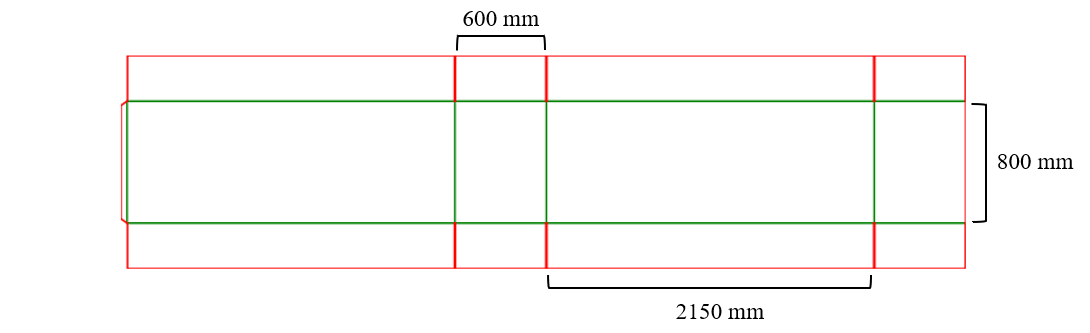
The Figure 10 shows the detailed and simplified design of the main box, viewed from above. It also shows the panel layout and the necessary box dimensions. The Figure 11 shows the folding box template for the main box, with the dimensions added on it. This folding cardboard is based on the FEFCO 0201 standard [5], this heavy duty design uses extended flaps and strong side panels to improve stacking performance and impact resistance.

Hardware system box:
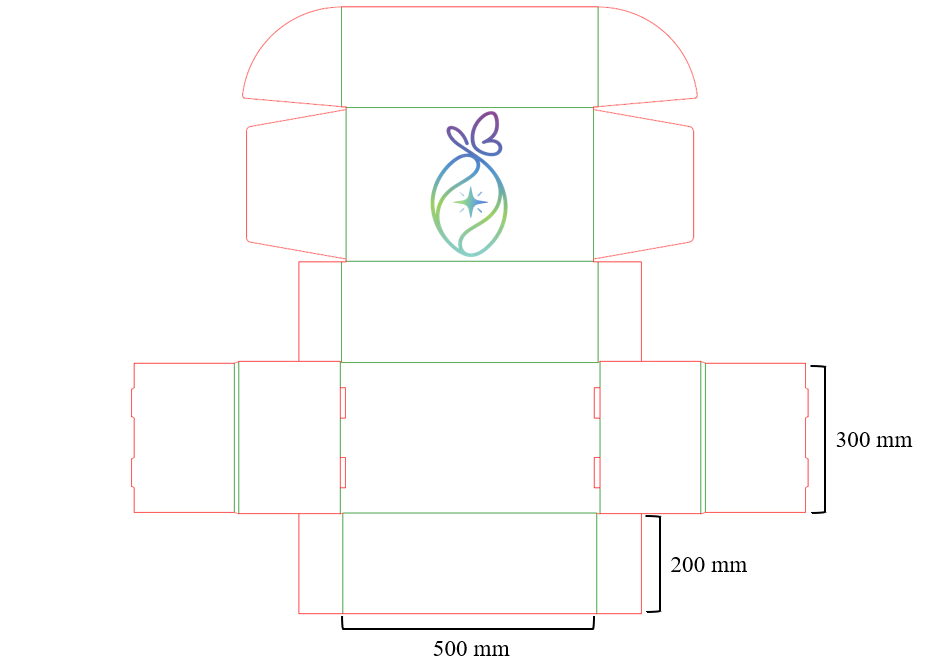
The Figure 12 shows the folding box template for the hardware system, with the dimensions and the logo added on it. This folding cardboard is based on the FEFCO 0427 standard [6], featuring a hinged lid that extends from the rear panel and folds over the front for closure. Designed without glue, the structure relies on interlocking tabs to secure the base instead of adhesive. Unlike conventional tuck-end boxes, the assembly method of the bottom is what makes it distinctive: the side panels are folded inward first, followed by the longer bottom flaps that lock into place over them. When assembled in the correct order, the box snaps together quickly and efficiently.
- 3D Model
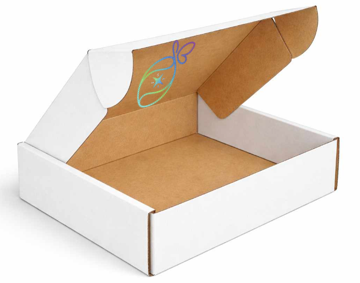
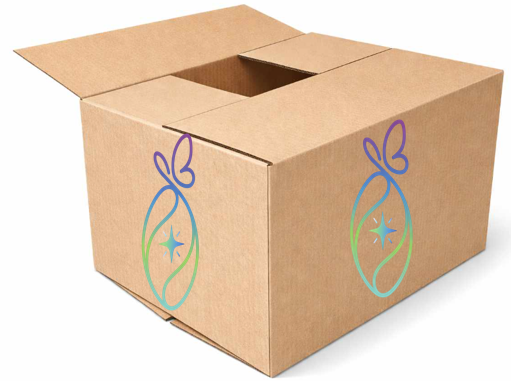
The Figure 13 shows the 3D model of the system hardware box, which will be located inside the main box shown in the Figure 14.
Prototype
Several modifications were made when translating the final design into a physical prototype. The prototype was developed mainly to validate the shape, proportions, and accessibility concept, rather than to demonstrate the complete functionality of the final product.
Compared to the designed solution, the prototype is structurally downscaled and simplified. The final product is intended to include integrated electronics, such as a projection system, speakers, sensors, lighting, and a QR-controlled application. These components were omitted from the prototype, as the immersive experience will instead be demonstrated using an external projector.
Structure
The prototype was scaled down to approximately 65 cm in height and 60 cm in diameter. Instead of the intended materials and manufacturing methods of the final product, a lightweight structure was created using bent PVC tubes. These tubes were connected with custom connectors designed in SolidWorks and produced using 3D printing.
To create the curved shell, strips of paper were cut and attached to the frame. This solution was chosen because it is lightweight, inexpensive, and suitable for quickly visualizing the overall shape.
Several parts of the final design were intentionally omitted, including the electronic components, interior finishes, and control interface. The prototype therefore focuses purely on the exterior form and accessibility of the cocoon.
Overall, the prototype differs significantly from the final product in terms of scale, materials, and functionality. While the final product will consist of durable materials and integrated technology, the prototype serves primarily as a proof of concept to communicate the design intent and validate the overall structure.
Hardware
Detail and explain any change made in relation to the designed solution. In case there are changes regarding the hardware, present the detailed schematics of the prototype.
Software
Detail and explain any changes made in relation to the designed solution, including different software components, tools, platforms, etc.
The code developed for the prototype (smart device and apps) is described here using code flowcharts.
Introduction
For this project, a web-based prototype was developed to simulate how users interact with the Healing Cocoon system.
The main goal of this prototype is to demonstrate how the system would work in practice. The focus is placed on the user experience, the session flow, and the interaction between staff users, child users, and the cocoon system.
In contrast to a purely visual mock-up, this prototype also includes a lightweight backend structure. This makes it possible to simulate communication with external components, such as controllers, projectors, and other smart device elements.
It is important to note that this is still a first demo version. The application can be improved and expanded in future iterations, especially when real hardware integration becomes available.
Technologies & Tools
The prototype was developed using lightweight and accessible technologies. The main reason for this choice was to keep the system simple, understandable, and easy to maintain during the prototype phase.
The frontend was developed using:
- HyperText Markup Language (HTML) for the structure of the pages
- Cascading Style Sheets (CSS) for the design, layout, and responsive interface
- JavaScript for basic interactivity and communication with the backend
No frontend frameworks such as React, Angular, or Vue were used. This decision was made deliberately to keep the interface lightweight and easy to understand. Since the prototype mainly focuses on demonstrating the system flow and user experience, a simple HTML, CSS, and JavaScript structure is sufficient.
For the backend, Python was used together with FastAPI. FastAPI was chosen because it is lightweight, modern, and suitable for building APIs quickly. It also makes it easier to manage future communication with external hardware components, such as:
- ESP32 microcontrollers
- Projectors
- Sound systems
- Scent controllers
- Other smart device modules
The backend acts as a central communication layer between the web application and the technical components of the Healing Cocoon system.
For data storage, SQLite is currently used. SQLite was selected because it is simple, file-based, and does not require a separate database server. This makes it suitable for a first prototype. In later versions, the database could be replaced by a more scalable solution if needed.
Version control is managed through GitHub. This allows the project files to be stored, tracked, and managed in a structured way. It also makes collaboration and future development easier.
For authentication and authorization, Clerk is used as an external authentication provider. This choice was made because implementing a secure authentication system from scratch can be complex and risky. By using an existing authentication provider, the prototype can rely on a more secure and tested solution. This is also relevant from a privacy and GDPR perspective, since authentication involves the processing of user-related data.
The main technologies used in the prototype are therefore:
- HTML, CSS, and JavaScript for the frontend
- Python with FastAPI for the backend API
- SQLite for local data storage
- Clerk for authentication and authorization
- GitHub for version control
Application Architecture
The software architecture of the prototype consists of three main layers:
- Frontend layer
- Backend API layer
- Data and authentication layer
The frontend layer contains the user interface for both staff users and child users. Staff members interact with the dashboard, session configuration pages, accessibility settings, and system settings. Child users interact with a simplified and more visual interface.
The backend API layer is built with FastAPI. This layer is responsible for processing requests from the frontend and preparing the system for future communication with hardware controllers. For example, when a staff member creates a new session, the backend can receive the session data and later forward relevant commands to controllers such as an ESP32.
The data and authentication layer consists of SQLite and Clerk. SQLite stores basic prototype data, while Clerk handles login, authentication, and authorization.
This architecture keeps the system modular. Each part of the application has a clear responsibility, which makes the prototype easier to expand in the future.
Application Overview
The application is divided into two main user roles:
- Staff users, such as clinic or practice staff
- Child users, who are the end users of the cocoon experience
The staff uses a dashboard to manage the system, configure sessions, and monitor active sessions. The child interacts with a much simpler interface designed to be intuitive, calming, and visually clear.
User Interface
The user interface is structured around a clear navigation map to ensure distinct experiences for both staff and child users. The system is organized into the following functional areas:
- Authentication: Secures access to the platform for authorized personnel.
- Staff Platform Navigation:
- Dashboard Overview: The central hub displaying current system status, daily metrics, and quick actions.
- New Session Configuration: The setup flow for customizing environments, sensory outputs, and durations for a child.
- Active Session Monitoring: The control panel used to monitor, pause, or stop an ongoing session.
- Accessibility Settings: Configurations for physical and sensory accommodations.
- System Settings: Management of general practice details, default preferences, and notifications.
- Child View: A simplified, highly visual flow allowing the child to select and experience a calming environment.
Login page
Figure 15 presents the authentication screen for our application.

The login page allows staff members to access the system using secure credentials.
The authentication process is handled through Clerk. This means that the application does not manage passwords directly inside the prototype. Instead, authentication is delegated to an external provider. This improves security and reduces the risk of incorrectly implemented login logic.
It includes fields for:
- Practice name
- Username or email
- Password
This ensures that only authorized staff members can access the management side of the Healing Cocoon system.
Dashboard
Figure 16 shows the top section of the dashboard overview.

Figure 17 shows the detailed metrics section of the dashboard.

The dashboard gives a general overview of the system.
It shows:
- The current status of the cocoon
- The number of sessions planned or completed for the day
- The most used environment
- Accessibility status
- Quick actions for starting or managing a session
From this page, staff can quickly navigate to other parts of the application or start a new session.
New Session page
Figure 18 presents the environment selection for a new session.

Figure 19 presents the parameter adjustments for a new session.

Figure 20 presents the parameter adjustments for a new session.

This page is used to create a new session for a child.
The staff can:
- Enter the child’s name
- Select an environment, such as Ocean, Forest, or Space
- Adjust sound levels
- Adjust scent levels
- Set the duration of the session
- Enable accessibility options if needed
When a new session is created, the selected data can be sent to the FastAPI backend. The backend can then process this session information and store relevant data in SQLite. In a later version, this data can also be used to send commands to hardware controllers such as an ESP32.
This page represents one of the most important functionalities of the system, because it defines the personalized cocoon experience for the child.
Active Session page
Figure 21 presents the active session monitoring overview.

Figure 22 presents the session control panel.

This page displays the currently active session.
It shows:
- The selected environment
- A countdown timer
- The chosen sound level
- The chosen scent level
- The current session status
It also includes controls to:
- Pause the session
- End the session
- Activate an emergency stop
The active session page is important because it gives staff members control over the ongoing experience. In future development, these controls could be connected to real hardware through the FastAPI backend. For example, ending a session could stop the projector, disable scent output, and reset the cocoon environment.
Child View
Figure 23 refers to the child interaction environment selection.

Figure 24 presents the active environment display for the child.

The child view is designed to be simple, calm, and easy to use.
It focuses mainly on visual elements and avoids too much text. The child can choose a calming environment and start the session in a straightforward way.
The interface uses large visual buttons, soft colors, and minimal navigation. This reduces cognitive load and makes the system more accessible for younger users or users who may be overwhelmed by complex interfaces.
Accessibility page
Figure 25 presents the physical accessibility configurations.

Figure 26 presents the sensory accessibility configurations.

This page allows staff to configure accessibility options.
For example:
- Wheelchair access
- Removable seat
- Low stimulation mode
- Reduced sound intensity
- Reduced visual effects
- Adjusted scent output
These settings ensure that the system can be adapted to the needs of different children. Since the Healing Cocoon is intended to provide a calming and supportive experience, accessibility is an important part of the software design.
Settings page
Figure 27 refers to the practice information settings.

Figure 28 refers to the default session preferences.

Figure 29 refers to the privacy and notification configurations.

The settings page is used to manage general system preferences.
It includes:
- Practice information
- Default session settings
- Notification options
- Basic data and privacy settings
The settings page helps staff configure the system according to the needs of their practice. Privacy-related settings are also included because the system may process sensitive user-related data, especially when linked to children, session preferences, or medical environments.
Code flow
The prototype uses a simple but structured software flow.
First, the staff member logs into the system through the authentication page. Authentication is handled by Clerk. After a successful login, the staff member gains access to the dashboard.
From the dashboard, the staff member can create a new session. During this process, session parameters are selected, such as the environment, sound level, scent level, duration, and accessibility options.
The selected session data is then processed by the frontend JavaScript logic and can be sent to the FastAPI backend. The backend is responsible for receiving and handling the data. Relevant session information can be stored in the SQLite database.
The active session page retrieves and displays the selected session data. Staff members can then monitor the session and use control options such as pause, end session, or emergency stop.
The child interacts with the system through the child view. This interface is simplified and focuses on visual interaction rather than technical controls.
In the current prototype, some parts of the hardware interaction are simulated. In a future version, the FastAPI backend can be extended to send real commands to controllers such as an ESP32, projector, sound system, or scent module.
Backend and Hardware Communication
The backend is built with Python and FastAPI. Its main purpose is to act as a bridge between the web application and the technical components of the Healing Cocoon.
FastAPI makes it possible to create clear API endpoints for actions such as:
- Creating a new session
- Starting a session
- Pausing a session
- Ending a session
- Activating an emergency stop
- Sending environment settings to hardware controllers
In a future hardware-integrated version, the backend could communicate with an ESP32 or similar microcontroller. This controller could then activate or adjust different cocoon components, such as lighting, projection, sound, and scent output.
This approach separates the user interface from the hardware logic. As a result, the frontend remains simple, while the backend manages the technical communication.
Database
SQLite is used as the database for the current prototype.
The main reason for using SQLite is its simplicity. It does not require a separate database server and stores data locally in a single file. This makes it suitable for a first prototype and for testing purposes.
The database can be used to store information such as:
- Session data
- Selected environments
- Duration settings
- Accessibility preferences
- Practice settings
For a future production version, a more advanced database system could be considered, such as PostgreSQL or MySQL. This would be more suitable if multiple users, multiple practices, or larger amounts of data need to be supported.
Authentication and Authorization
Authentication and authorization are handled through Clerk.
Authentication verifies the identity of the user, while authorization determines what the user is allowed to access or manage.
Using Clerk provides several advantages:
- It avoids building a custom login system from scratch.
- It reduces the risk of security mistakes in authentication logic.
- It provides a more reliable and tested authentication flow.
- It supports better user management.
- It is more suitable when considering privacy and GDPR-related requirements.
Since the Healing Cocoon system may be used in a healthcare or child-focused context, secure access control is important. Only authorized staff members should be able to access session management, settings, and user-related information.
Version Control
GitHub is used for version control.
This allows the development process to be managed in a structured way. Changes to the code can be tracked, previous versions can be restored if needed, and collaboration becomes easier.
GitHub is also useful for documenting the development process and keeping the frontend, backend, and configuration files organized.
Future improvements
This prototype is only a first version and can be further improved.
Possible future improvements include:
- Full integration with real hardware, such as projectors, ESP32 controllers, scent systems, and sound systems
- Expanding the FastAPI backend with more API endpoints
- Replacing SQLite with a more scalable database such as PostgreSQL
- Adding real-time communication between the frontend and backend
- Adding real-time session monitoring
- Improving authentication and role-based authorization
- Adding detailed logging for sessions and system events
- Adding more advanced personalization for children
- Improving GDPR-related data handling and consent management
- Adding admin roles for practice managers
- Adding error handling for failed hardware communication
Tests & Results
Hardware tests
Perform the hardware tests specified in Tests. These results are presented below in the form of table with three columns: ID, Functionality and Test Result (Pass/Fail).
| ID | Functionality | Status |
|---|---|---|
| FT-GY01 | GY-21 Baseline Calibration Read | Pass |
| FT-GY02 | GY-21 Thermal Responsiveness | Pass |
| FT-GY03 | GY-21 Humidity Saturation | Pass |
| PT-GY01 | GY-21 Environmental Recovery Rate | Pass |
| PT-GY02 | GY-21 I2C Polling Stress (50ms) | Pass |
| FT-BH01 | BH1750 Lux Range Verification | Pass |
| FT-BH02 | BH1750 Shadow Transient Detection | Pass |
| PT-BH01 | BH1750 Continuous Light Exposure | Pass |
| PT-BH02 | BH1750 High-Freq Transitions (10Hz) | Pass |
| FT-MQ01 | MQ-135 Analog Voltage Baseline | Pass |
| FT-MQ02 | MQ-135 VOC Spike Detection | Pass |
| PT-MQ01 | MQ-135 48h Thermal Burn-in Drift | Pass |
| PT-MQ02 | MQ-135 Dissipation Latency | Pass |
| FT-WA01 | Atomizer Digital State Actuation | Pass |
| FT-WA02 | Atomizer Capillary Wicking Action | Pass |
| PT-WA01 | Atomizer 100 Duty Cycles Endurance | Pass |
| PT-WA02 | Atomizer Driver Board Thermal Load | Pass |
| FT-SYS01 | System I2C Address Multiplexing | Pass |
| PT-SYS01 | Power Supply Rail Voltage Stability | Pass |
| PT-SYS02 | System End-to-End Latency | Pass |
Software tests
Software tests comprise: (i) functional tests regarding the identified use cases / user stories; (ii) performance tests regarding exchanged data volume, load and runtime (these tests are usually repeated 10 times to determine the average and standard deviation results); (iii) usability tests according to the System Usability Scale.
Summary
The Healing Cocoon is an evidence-based, multisensory environment designed to alleviate pre-appointment anxiety in pediatric patients. By combining immersive projection, spatial audio, and calming scents in a wheelchair-accessible, semi-enclosed structure, the project provides a hygienic, wearable-free alternative to VR. The team successfully developed the structural design, a functional web application, and hardware integration plans within a €100 budget , prioritizing eco-efficiency and patient safety.